Faster hide picker: less friction, more focus
A small UI upgrade that makes hiding/postponing reminders faster by replacing the old two-column menu with a wheel picker.
Posted by
 Gustav Caves
Related reading
Get Notion reminders on your Android home screen
Learn how NotiZen Widget turns Notion date properties like Reminder or Due Date into local Android notifications from your Custom Views.
Plan your Notion agenda with AI using NotiZen JSON export
Learn how NotiZen Widget lets Android users export selected Notion Custom Views and cached calendar events as JSON for ChatGPT, MCP workflows, and weekly planning.
Fixing Notion Native Icons in an Android Widget
A behind-the-scenes look at how NotiZen Widget learned to render Notion native icons, remote icons, SVGs, and color mappings correctly on the Android home screen.
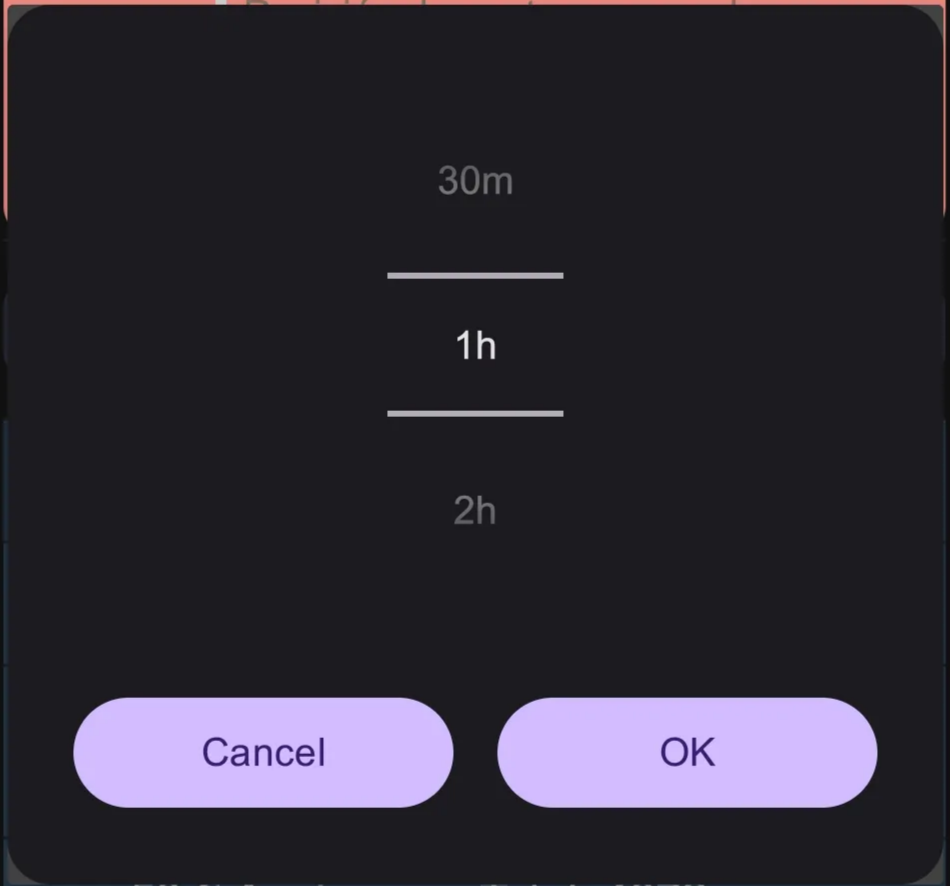
Hiding reminders is now faster (and with less friction)
When you’re in the middle of a task, the last thing you want is to fight with a menu. That’s why I improved the time selector used to hide / postpone a reminder.
The goal is simple: fewer decisions, less visual noise, and faster action.
Before: two columns, eyes jumping left and right
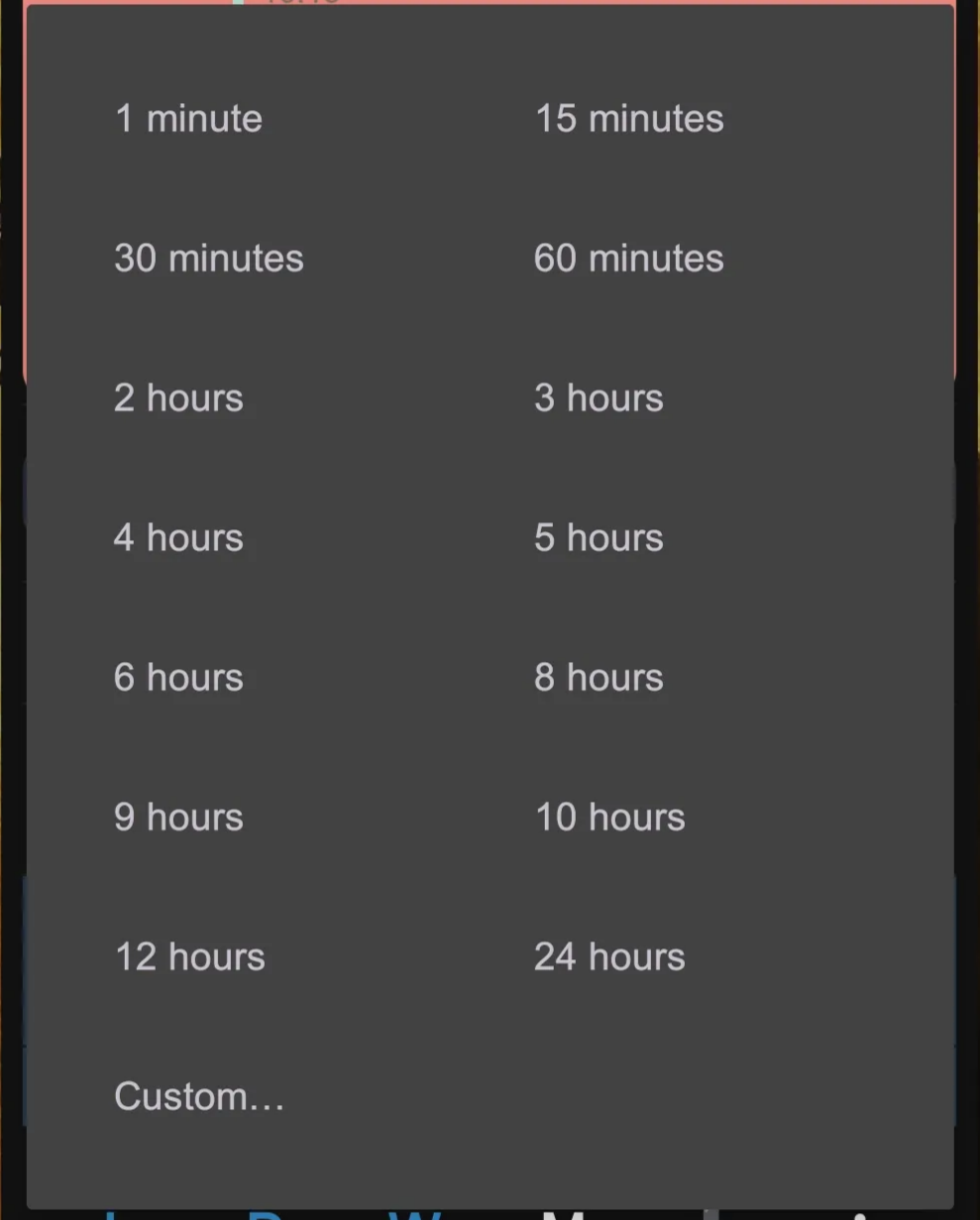
Before, tapping the hide icon opened a two-column list of time options. Visually, this forced your eyes to scan left and right to find the right choice.
It wasn’t a big problem—but it was constant micro-friction, especially when you just wanted to act quickly and move on.
Now: wheel picker, same finger position, instant decision
The new wheel picker keeps your finger in the same spot. You simply slide up or down, confirm, and you’re done.
Less searching. Less visual movement. More flow.
What you gain with this change
- More speed — pick a time without scanning columns.
- More focus — park what you won’t do now and keep going.
- One-hand friendly — centered interaction, no visual travel.
How it works (3 steps)
- Tap the hide / postpone icon.
- Slide to choose a duration (30m, 1h, 2h…).
- Tap OK and continue your work.
In just two taps, you can hide something you’re not doing now and revisit it later—without breaking concentration.
In short
This improvement isn’t about looking fancy. It’s about helping you think less and execute more.
I’m continuing to polish these small interactions so every gesture in the app feels fast, clear, and intentional.
Want updates, feedback, or tutorials?
If you want to share feedback, report bugs, or request features, Reddit is the best public place to do it. And if you prefer video walkthroughs, you’ll find demos and guides on my YouTube channel.
- Reddit community — Share feedback, bugs, and feature requests
- Telegram — Get direct support
- YouTube — Watch setup guides & feature demos
New here? Try NotiZen Widget
If this is your first time on the site, the best way to “get it” is to try it on your home screen and connect your Notion database. Once you see the workflow, you can decide whether to upgrade.
👉 Open the official NotiZen Widget website
Your feedback helps me ship better updates faster — so if something feels slow, confusing, or missing, tell me in the Reddit community.